Priorities View
The Priorities View is accessible from the Reports in the left navigation bar.
Click on the View Priorities link under the specific stage column (source/build/stage Release/release) on the Reports page, for the required application.
Reason for Priority Column
The prioritization of remediation is determined by the Sonatype proprietary Prioritization Algorithm. Learn more about the Prioritization Algorithm.
Why is Prioritization Necessary?
The limited availability of resources (developer time) and tight deliverable deadlines, remediating policy violations during the development process may cause scope creep.
To prevent excessive scope creep and impacts to the sprint activities, remediation tasks can be prioritized. This allows lesser deadline disruptions, while maintaining a good security posture.
Prioritizing also helps prevent future or downstream use of the vulnerable components, leading to reduced policy violations.
The top section shows the name of the branch evaluated, evaluation triggered by, abbreviated git commit hash, the commit timestamp, and stage of evaluation.
NOTE: The branch name is visible only when the evaluation is run from a CI/CD environment or Sonatype CLI.
Component Column
The Component column displays the name of the implicated component and its type - direct dependency, transitive dependency or InnerSource dependency (releases 193 and later). Refer to type of dependencies reported for more information.
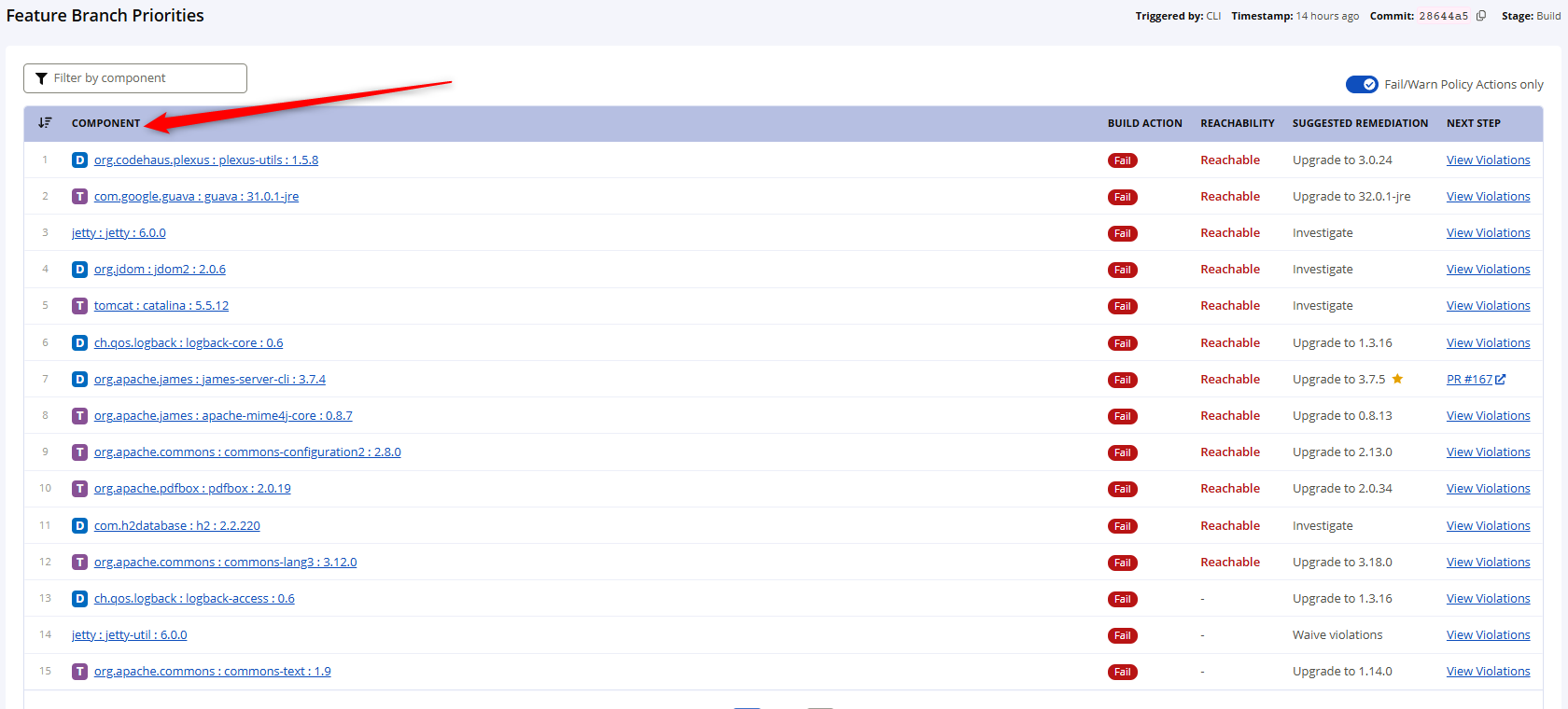
Suggested Remediation Column
The Suggested Remediation column shows the component version available to remediate the policy violation.

The component suggestions include the following:
recommended-non-breaking-with-dependencies – A non-breaking upgrade that remediates all policy violations for the component and all of its dependencies, without introducing breaking changes.
In Component Remediation API responses, this recommendation is returned with the remediation type `recommended-non-breaking-with-dependencies`.
Example: For a component
abcat version1.2.3, suppose newer versions1.2.8,1.2.9, and1.2.10are all non-breaking for the component. If dependency-related policy violations exist for1.2.8and1.2.10, but1.2.9has no such violations, thenrecommended-non-breaking-with-dependenciesselects1.2.9.See Golden Version
recommended-non-breaking – A non-breaking upgrade of the component that remediates policy violations for the component itself, without introducing breaking changes. It may not remediate policy violations in its dependencies.
In Component Remediation API responses, this recommendation is returned with the remediation type `recommended-non-breaking`.
Example: For a component
abcat version1.2.3, suppose newer versions1.2.8,1.2.9, and1.2.10have no policy violations or breaking changes for the component itself, but their dependencies introduce policy violations and/or breaking changes. Because dependencies are not considered,recommended-non-breakingselects the highest available version,1.2.10.next-no-violation with dependencies – The next available version of the component (closest higher version to the current one) where neither the component nor any of its dependencies violate any policies.
next-no-violation – The next available version of the component (closest higher version to the current one) that does not violate any policies for the component itself. Dependencies are not considered.
Example: For a component
abcat version1.2.3, suppose newer versions1.2.8,1.2.9, and1.2.10introduce breaking changes and also have dependencies with policy violations and/or breaking changes. Becausenext-no-violationconsiders only policy violations on the component itself, it selects the highest available version,1.2.10.next-non-failing with dependencies – The next available version of the component where neither the component nor its dependencies would fail the build for the given
stageId. Policy warnings may still occur, but no Fail actions are triggered for the component or its dependencies.next-non-failing – The next available version of the component that does not fail the build for the given
stageId. The component may still have policy warnings, but no Fail actions are triggered. Dependencies are not considered.
next-non-failing vs. next-no-violation
next-no-violations finds the first higher version that has zero policy violations, while next-non-failing finds the first higher version that won’t fail the current stage but may still include warning-level violations.
Build Action Column
The Build Action column in the IQ Priorities view displays the current status of a component in relation to policy violations and their impact on your build. Specifically, it can show:
Fail – The build is halted due to the violation.
Warn – The build is flagged as unstable due to the violation.
Waived – All violations for the component are waived. When this status is shown, a tooltip indicates the exact time left for the waiver to expire.
Reachability Column
The Reachability column in the Priorities view shows whether a policy violation is associated with a component that is:
Reachable – The component is found to be in the execution path of your application.
Not Reachable – The component is present but not in the execution path.
Unknown (displayed as “-”) – Reachability Analysis was not performed for this component or policy violation. Common reasons include :
The component has no known security vulnerabilities (no CVEs), so there is no reachability status to report.
The component is not a supported type for Reachability Analysis (currently Java/JVM and JavaScript).
The component could not be identified by IQ Server.
The component is excluded from analysis (for example, outside the namespaces configured for Reachability Analysis).
The dependency artifact is not present in the scan target.
The vulnerability cannot be mapped to a callable method.
The Fail-Warn Policy Action Filter
Use the Fail/Warn policy action filter to view the priorities based on whether the policy violation has a fail/warn policy action associated with it.
The fail/warn policy action filter is set to false by default for evaluations triggered by Jira integrations.
Note
The Fail/Warn Policy Actions filter shows only components with active (non-waived) violations that have Fail or Warn policy actions. Components where all violations are waived will be hidden when this filter is enabled.

Next Step Column
The Next Step column in the Priorities view provides contextual, actionable guidance for each prioritised component, showing developers the most relevant next action to take.
Next Step actions:
Go to Build stage – Shown when the report is based on a develop stage evaluation and the same component hash appears in the latest build stage evaluation with the same violations.
View violations – Shown when manual investigation is required.
Create PR – Shown when an automated remediation pull request can be created for the component.
Creating PR... – Shown while the automated remediation pull request is being created.
Retry – Shown when automated remediation pull request creation fails and another attempt can be made.
PR #<num> – Shown when an automated remediation pull request already exists for the component. Links to the pull request in the configured source control provider.
Create PR (disabled) – Shown when an automated remediation pull request cannot currently be created because source control integration is not configured or manual pull requests are disabled.
The Next Step column provides the following:
Automated Remediation Workflow – Enables PR creation for components with available upgrade paths, tracks PR creation progress, and provides retry capabilities on failure
Investigation Guidance – Directs developers to view detailed violations when manual investigation is needed or no automated fix is available
Workflow Routing – Redirects to the Build stage when violations exist on the default branch, ensuring issues are resolved at their source
Status Visibility – Displays real-time feedback on PR creation status and provides links to successfully created PRs
Waived Violation
When waivers for a violation are in effect, the Build Action column displays the status as Waived. The Suggested Remediation column shows the exact number of violations that are waived for the component.

The Auto tab indicates an automated waiver has been applied. For violations that are suitable for automated waivers, the tooltip displays the suggestion as "Ask an administrator to configure Automated Waivers". Learn more on View Waiver Information from the Priorities View.
If the violation is detected on the default (or main) branch, the Suggested Remediation column shows Resolve on default branch. This facilitates minimizing the remediation efforts by fixing the violation once on the default branch, instead of duplicating the efforts on every feature branch. Subsequent rebasing or merging will prevent the violation from occurring again in the feature branches. The corresponding Next Step is shown as Go to Build Stage.

Click on the Go to Build Stage link to view the latest priorities report in your main branch to resolve the policy violation.